A code of conduct defines standards for how to engage in a community. It signals an inclusive environment that respects all contributions. It also outlines procedures for addressing problems between members of your project's community. For more information on why a code of conduct defines standards and expectations for how to engage in a community, see the Open Source Guide.
Before adopting a code of conduct for your project:
- Research different codes of conduct designed for open source projects. Choose one that reflects your community's standards.
- Consider carefully whether you are willing and able to enforce it.
You can add a code of conduct to your project by manually creating a custom code of conduct file. If you use a code of conduct written by another person or organization, be sure to follow any attribution guidelines from the source.
You can create a default code of conduct for your organization or personal account. For more information, see Creating a default community health file.
Adding a code of conduct manually
You can manually add a code of conduct to your project.
-
On GitHub, navigate to the main page of the repository.
-
Above the list of files, select the Add file dropdown menu, then click Create new file.
Alternatively, you can click in the file tree view on the left.

-
In the file name field, type the path and name for the file. GitHub looks for a code of conduct in the
.githubdirectory, then the root of the repository, then thedocsdirectory, and uses the first file it finds.- To add your code of conduct to the repository's
.githubdirectory, type .github/CODE_OF_CONDUCT.md. - To add your code of conduct to the repository's root directory, type CODE_OF_CONDUCT.md.
- To add your code of conduct to the repository's
docsdirectory, type docs/CODE_OF_CONDUCT.md.
- To add your code of conduct to the repository's
-
In the new file, add your custom code of conduct.
-
Click Commit changes...
-
In the "Commit message" field, type a short, meaningful commit message that describes the change you made to the file. You can attribute the commit to more than one author in the commit message. For more information, see Creating a commit with multiple authors or on behalf of an organization.
-
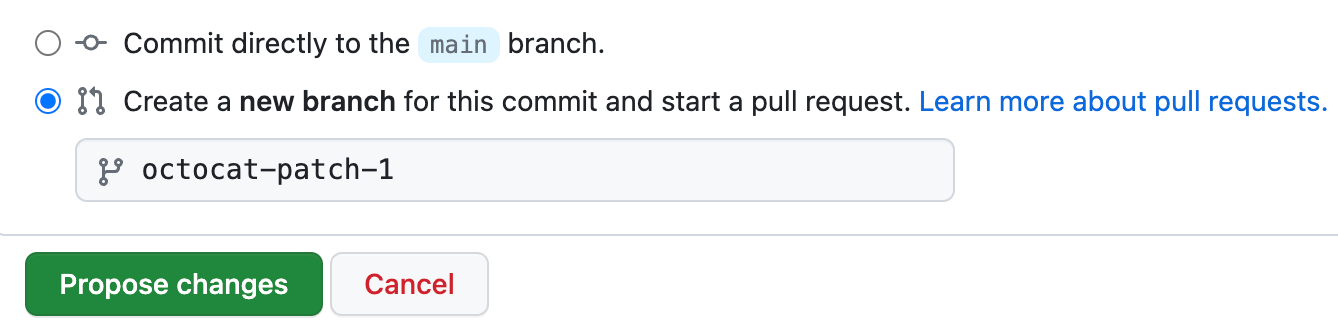
Below the commit message fields, decide whether to add your commit to the current branch or to a new branch. If your current branch is the default branch, you should choose to create a new branch for your commit and then create a pull request. For more information, see Creating a pull request.
-
Click Commit changes or Propose changes.

