Prerequisites
Confirm which Copilot plan or billing model your enterprise uses. For a comparison of the enterprise options, see Plans for GitHub Copilot.
Before assigning seats, configure policies, budgets, and network requirements. See Setting up GitHub Copilot for your enterprise.
Options for assigning GitHub Copilot
Users must receive an assigned Copilot seat, regardless of billing model.
The available assignment methods depend on your enterprise's plan or billing model.
Assigning seats directly
With Copilot access or Copilot Business, enterprise owners can assign seats directly to individual members or enterprise teams. With Copilot access, you can also assign seats to all members of an organization. For guidance on organizing members before assignment, see Best practices for organizing work in your enterprise.
When you assign seats to an enterprise team, each member receives a seat. Users receive or lose access when they are added or removed from the team. If you use Enterprise Managed Users, you can sync the team with an identity provider (IdP) group and manage licensing from your IdP.
Prerequisites
- Set Policies for enterprise-assigned users to define whether policies set to "Let organizations decide" default to enabled or disabled for directly assigned users. See Managing policies and features for GitHub Copilot in your enterprise.
- If you want to assign seats to users who are not already in your enterprise, first invite the users (personal accounts) or provision them from your IdP (Enterprise Managed Users). For personal accounts, see Adding users to your enterprise.
- If you want to assign seats to an enterprise team, create the team first. See Creating enterprise teams.
Assigning seats
With Copilot access, members without a GitHub Enterprise Cloud license receive Copilot Standalone at $10 USD per month. Review the access charges before confirming an assignment.
-
Navigate to your enterprise. For example, from the Enterprises page on GitHub.com.
-
At the top of the page, click Billing and licensing.
-
In the left sidebar, click Licensing.
-
Open seat management for your billing model:
- With Copilot access, click Manage in the "Copilot access" section.
- With Copilot Business, click Manage next to "Copilot".
-
Start an assignment:
- With Copilot access, on the All members tab, click Assign access.
- With Copilot Business, click the All members or Enterprise Teams tab, then click Assign licenses.
-
Select the recipients and confirm the assignment:
- With Copilot access, search for and select the members, then click Review access. Review the selected members, any Copilot Standalone charges, and the total monthly access cost. Usage is metered and billed separately. To confirm, click Assign access.
- With Copilot Business, search for users or teams, then click Add licenses.
With Copilot Business, you can also prevent organization owners from assigning licenses by disabling access for organizations. See Disabling Copilot for organizations in your enterprise.
Enabling Copilot for organizations
With Copilot Business or Copilot Enterprise, enterprise owners can enable access for organizations so organization owners can assign seats to their members.
If your enterprise has a Copilot Enterprise plan, you can assign licenses for either Copilot Enterprise or Copilot Business.
-
Navigate to your enterprise. For example, from the Enterprises page on GitHub.com.
-
At the top of the page, click Billing and licensing.
-
In the "Billing and licensing" sidebar, click Licensing.
-
In the "Copilot" section, click Manage.
-
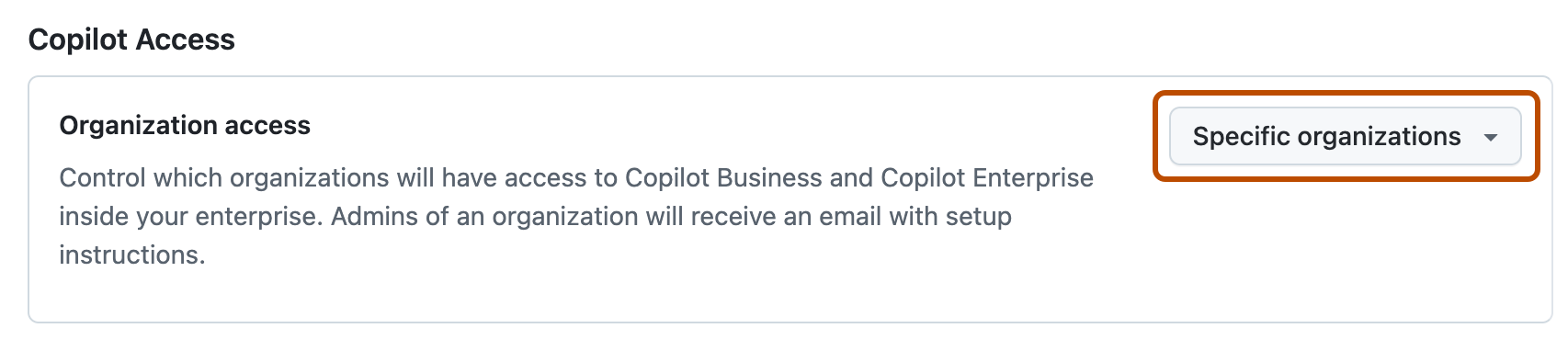
Next to "Organization access", choose whether to enable Copilot for all organizations or allow for specific organizations.
-
If you selected Allow for specific organizations:
- Click the Organizations tab.
- Locate the organization for which you want to enable Copilot.
- To the right of the organization name, select the Copilot dropdown menu.
- If your enterprise has a Copilot Business plan, click Enabled.
- If your enterprise has a Copilot Enterprise plan, click either Copilot: Enterprise or Copilot: Business to assign a specific Copilot plan to the organization.

After you've enabled Copilot for an organization in your enterprise, owners of the organization can grant access to some or all members of the organization. See Granting access to GitHub Copilot for members of your organization.
Removing member seats
With Copilot access, the member-level Remove access action removes a member's seat, including assignments inherited from default, enterprise team, or organization settings. You do not need to remove the member from those teams or organizations. The member can still use Copilot until the end of the billing cycle.
- Navigate to your enterprise. For example, from the Enterprises page on GitHub.com.
- At the top of the page, click Billing and licensing.
- In the left sidebar, click Licensing.
- In the "Copilot access" section, click Manage.
- On the All members tab, find the member whose seat you want to remove.
- For that member, use Remove access.
For billing and access effects, see Making changes to your GitHub Copilot license.
Next steps
After assigning access, ask developers to sign in with the account that has their enterprise-provided license. See Quickstart for using GitHub Copilot in your IDE.