About multiple accounts
You can sign in to GitHub Desktop with more than one account on the same host. For example, you can use a personal account and a work account on GitHub.com, or several accounts on GitHub Enterprise Server or GHE.com. You don't need to sign out of one account to use another.
A repository in GitHub Desktop can be assigned to one account on the repository's host. GitHub Desktop uses the assigned account for GitHub API requests and for HTTPS authentication when Git pushes, pulls, or fetches.
Copilot features in GitHub Desktop, such as generating commit messages, use the repository's account if it has access to Copilot. Otherwise, they use another signed-in account that does.
If you used GitHub Desktop before multiple accounts were supported, each of your existing repositories is assigned to the account you were signed in to on that host. If you only use one account, nothing changes.
Hinweis
The account assigned to a repository doesn't change the name and email address that Git uses as the author of your commits. For more information, see Git für GitHub Desktop konfigurieren.
Adding another account
-
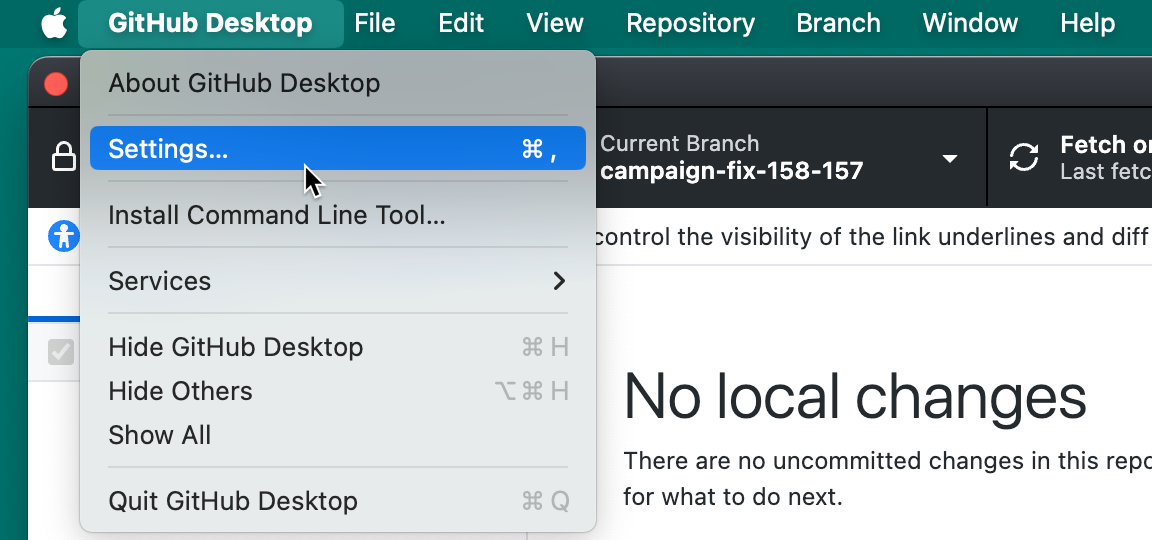
Wähle in der Menüleiste GitHub Desktop aus, und klicke dann auf Einstellungen.
-
In the "Settings" window, on the Accounts pane, click Add GitHub.com account. To sign in to GitHub Enterprise Server or GHE.com, click Add GitHub Enterprise account instead.

-
Follow the prompts to sign in. See Authentifizieren bei GitHub in GitHub Desktop.
Tipp
Your browser might ask which GitHub account to use, even if you're already signed in. Choose the account you want to add, or sign in to a different account.


-
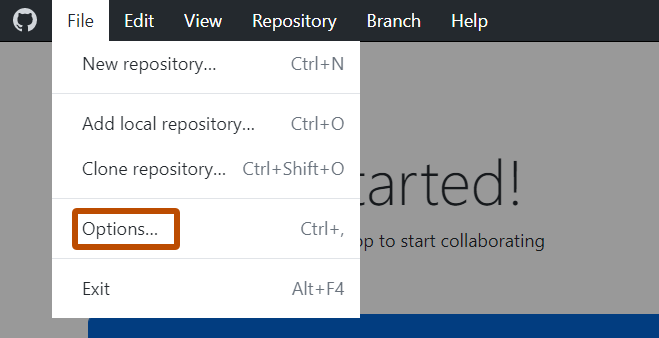
Wähle das Menü Datei aus, und klicke dann auf Optionen.
-
In the "Options" window, on the Accounts pane, click Add GitHub.com account. To sign in to GitHub Enterprise Server or GHE.com, click Add GitHub Enterprise account instead.

-
Follow the prompts to sign in. For more information, see Authentifizieren bei GitHub in GitHub Desktop.
Tipp
Your browser might ask which GitHub account to use, even if you're already signed in. Choose the account you want to add, or sign in to a different account.


The "Accounts" pane lists your GitHub.com accounts under "GitHub.com". Your GitHub Enterprise Server and GHE.com accounts are listed under "GitHub Enterprise", grouped by hostname.
How GitHub Desktop chooses an account for a repository
GitHub Desktop assigns an account to a repository when you clone, add, or publish it.
- Cloning from the "GitHub" tab: Choose an account from the Account dropdown menu at the top of the "Clone a Repository" window. This dropdown menu only appears if you're signed in to more than one account. The list shows the repositories that account can access. When you clone, the repository is assigned to that account. For more information, see Repositories von GitHub Desktop klonen und per „Fork“ kopieren.
- Cloning from the "URL" tab, or adding a local repository: GitHub Desktop checks which of your accounts on the repository's host can access the repository.
- If one account can access it, the repository is assigned to that account.
- If more than one account can access it, GitHub Desktop asks you to choose. Every account can access a public repository, so you're always asked to choose if you're signed in to more than one account on its host.
- If none of your accounts can access it, the repository is added without an assigned account. If you're cloning a private repository over HTTPS, the clone fails.
- Publishing a repository: Choose an account from the Account dropdown menu in the "Publish Repository" window. If the repository's assigned account is signed in, that account is selected. For more information, see GitHub mithilfe von GitHub Desktop ein vorhandenes Projekt hinzufügen.
Choosing an account when GitHub Desktop asks
If a repository doesn't have an assigned account, the "Repository account" window opens when GitHub Desktop needs one. For example:
- Git needs HTTPS credentials to push or pull.
- GitHub Desktop refreshes pull requests or creates a fork.
Background fetches never open this window. If you aren't signed in to any account on the repository's host, GitHub Desktop asks you to sign in instead.
If the repository's assigned account is signed out, the "Repository account" window asks you to sign in to that account. Click Sign in to sign in again. If you're signed in to another account on the same host, you can click Choose another account to assign that account to the repository instead.
To choose an account for a repository that doesn't have one:
-
In the "Repository account" window, select the Account dropdown menu, then click the account you want to use for this repository. The list only shows accounts on the repository's host.
If the account you want isn't listed, click Cancel, sign in to the account, then try again. For more information, see Adding another account.


-
Click Use account.


Changing the account for a repository
You can change the account for any repository that has a remote on GitHub.com, GitHub Enterprise Server, or GHE.com. You can only choose accounts that are signed in to the repository's host.
Using repository settings
-
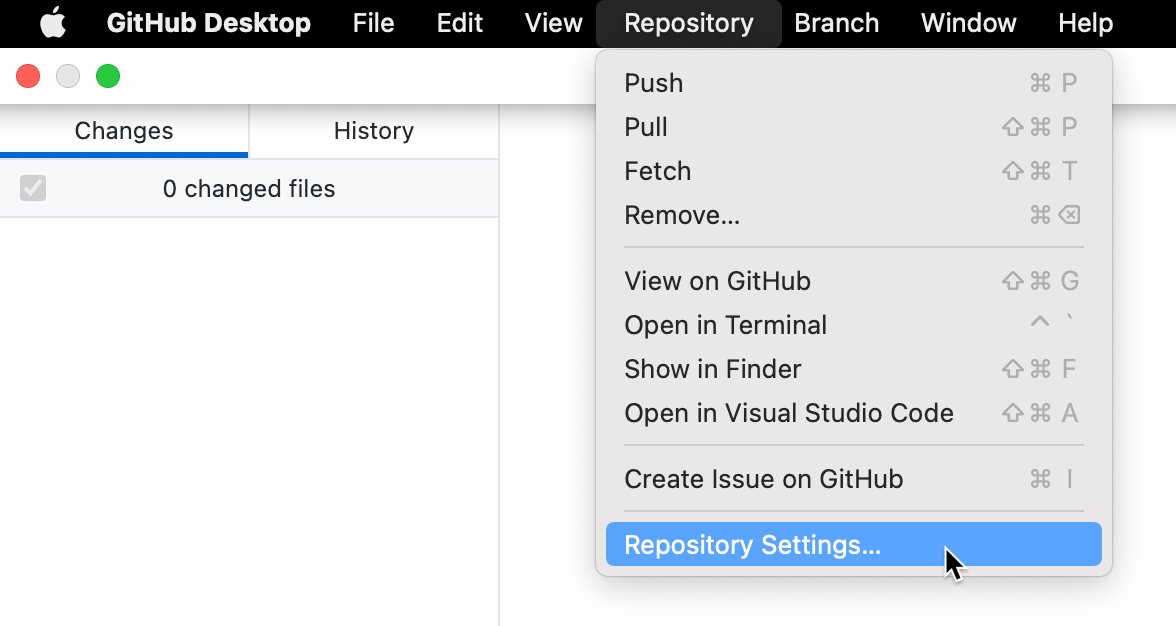
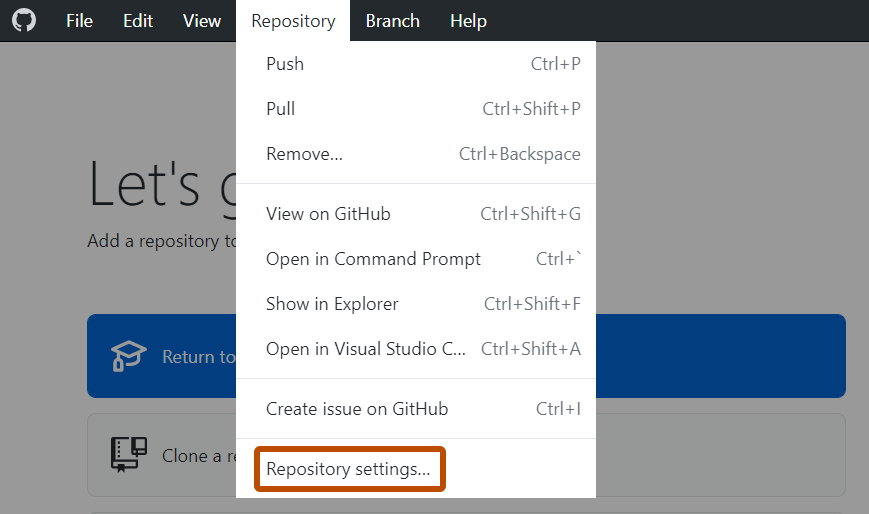
Wähle in der Menüleiste Repository aus, und klicke dann auf Repositoryeinstellungen.
-
In the "Repository Settings" window, on the Remote pane, select the Account dropdown menu, then click the account you want to use.
To remove the repository's account, click None (unassigned).


-
Click Save.


Using the repository list
If a repository has a remote on a GitHub host and there's more than one account to choose from, you can switch the repository's account from the repository list.
-
In the repository bar, click Current Repository.
-
Right-click the repository, select Account, then click the account you want to use.
The current account has a checkmark. If the current account is signed out, it's listed as "@USERNAME (Signed out)".


You can also open a repository's settings from the same context menu. Right-click the repository, then click Repository Settings….
Signing out of an account
When you sign out of an account that has repositories assigned to it, GitHub Desktop asks whether to keep those assignments.
-
Wähle in der Menüleiste GitHub Desktop aus, und klicke dann auf Einstellungen.
-
In the "Settings" window, on the Accounts pane, next to the account you want to sign out of, click Sign Out.
-
If repositories are assigned to the account, choose what happens to them in the "Sign out of @USERNAME?" window.
- To keep the assignments, leave Clear repository account assignments deselected. When you sign in to the account again, GitHub Desktop uses it for these repositories again.
- To remove the assignments, select Clear repository account assignments. GitHub Desktop asks you to choose an account the next time it needs credentials for these repositories.

-
Click Sign out.

-
Wähle das Menü Datei aus, und klicke dann auf Optionen.
-
In the "Options" window, on the Accounts pane, next to the account you want to sign out of, click Sign out.
-
If repositories are assigned to the account, choose what happens to them in the "Sign out of @USERNAME?" window.
- To keep the assignments, leave Clear repository account assignments deselected. When you sign in to the account again, GitHub Desktop uses it for these repositories again.
- To remove the assignments, select Clear repository account assignments. GitHub Desktop asks you to choose an account the next time it needs credentials for these repositories.

-
Click Sign out.

If the account’s token is no longer valid and GitHub Desktop removes the account, the repository assignments are kept.