About SAML access to your organization
When you enable SAML single sign-on for your organization, each organization member can link their external identity on your identity provider (IdP) to their existing account on GitHub. To access your organization's resources on GitHub, the member must have an active SAML session in their browser. To access your organization's resources using the API or Git, the member must use a personal access token or SSH key that the member has authorized for use with your organization.
You can view and revoke each member's linked identity, active sessions, and authorized credentials on the same page.
Viewing and revoking a linked identity
You can view the single sign-on identity that a member has linked to their account on GitHub.
If a member links the wrong identity to their account on GitHub, you can revoke the linked identity to allow the member to try again.
When available, the entry will include SCIM data. For more information, see About SCIM for organizations.
Warning
For organizations using SCIM:
- Revoking a linked user identity on GitHub will also remove the SAML and SCIM metadata. As a result, the identity provider will not be able to synchronize or deprovision the linked user identity.
- An admin must revoke a linked identity through the identity provider.
- To revoke a linked identity and link a different account through the identity provider, an admin can remove and re-assign the user to the GitHub Enterprise Cloud application. For more information, see your identity provider's documentation.
Warning
If your organization uses team synchronization, revoking a person's SSO identity will remove that person from any teams mapped to IdP groups. For more information, see Synchronizing a team with an identity provider group.
-
In the upper-right corner of GitHub, click your profile picture, then click Organizations.
-
Click the name of your organization.
-
Under your organization name, click People.

-
Click on the name of the member whose linked identity you'd like to view or revoke.
-
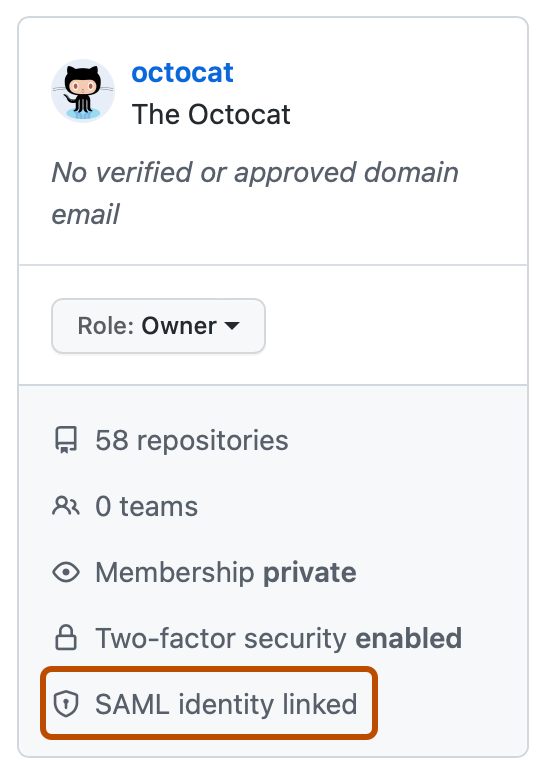
In the left sidebar, click SAML identity linked.
-
Under "Linked SSO identity", view the linked SSO identity for the member.
-
To revoke the linked identity, to the right of the identity, click Revoke.
-
Read the information, then click Revoke external identity.


Viewing and revoking an active SAML session
-
In the upper-right corner of GitHub, click your profile picture, then click Organizations.
-
Click the name of your organization.
-
Under your organization name, click People.
-
Click on the name of the member whose SAML session you'd like to view or revoke.
-
In the left sidebar, click SAML identity linked.
-
Under "Active SAML sessions", view the active SAML sessions for the member.
-
To revoke a session, to the right of the session you'd like to revoke, click Revoke.
Viewing and revoking authorized credentials for a single member
You can see each personal access token and SSH key that a member has authorized for API and Git access. Only the last several characters of each token or key are visible. If necessary, work with the member to determine which credentials you should revoke. Be aware that revoking a credential only removes the SAML authorization. It does not delete the underlying token or SSH key.
-
In the upper-right corner of GitHub, click your profile picture, then click Organizations.
-
Click the name of your organization.
-
Under your organization name, click People.
-
Click on the name of the member whose authorized credentials you'd like to view or revoke.
-
In the left sidebar, click SAML identity linked.
-
Under "Authorized credentials", view the authorized credentials for the member.
-
To revoke credentials, to the right of the credentials you'd like to revoke, click Revoke.
-
Read the information, then click I understand, revoke access for this token.
Responding to an incident from organization settings
When your organization is affected by a security incident, you can respond by preventing programmatic access to organizations.
Available actions:
- Revoke SSO authorizations to remove access to SSO-protected organization resources for user credentials in your organization.
- Delete keys and tokens to remove user tokens and SSH keys in your organization, even if they don't have an SSO authorization (Enterprise Managed Users only).
In the "Authentication security" section of your organization settings, you can review counts for user tokens and keys that are authorized for single sign-on (SSO). Then, if needed, you can take action against credentials:
- For individual members: Revoke SSO authorizations or delete credentials for a specific user when responding to a targeted incident or performing routine access cleanup.
- For a specific credential type: Revoke SSO authorizations or delete credentials of a selected type, such as only personal access tokens (classic), across your entire organization or for a specific individual member.
- For all members (bulk actions): Take bulk action to revoke SSO authorizations or delete credentials across all members and all/a specific supported credential type when responding to a major security incident.
- Use the web UI or the organization REST API for these actions. For more information, see REST API endpoints for organizations, REST API endpoints for organizations, REST API endpoints for organizations, and REST API endpoints for organizations.
- All de-authorization and revocation actions are captured in the audit log and affected users are notified. For more information, see Reviewing the audit log for your organization.
- For enterprise-wide incident response actions, see Revoking authorizations or deleting credentials in your enterprise.
Taking action against a specific member
You can revoke SSO authorizations or delete credentials for a specific user. This is useful for responding to incidents affecting individual accounts, such as a compromised account or lost hardware, or for routine access cleanup.
Revoking authorizations for a specific user
- Navigate to your organization.
- At the top of the page, click Settings.
- In the left sidebar, click Authentication security.
- In the "Danger zone" section, click Revoke for ▼, then click A specific user.
- Select the user whose authorizations you want to revoke.
- To confirm, type
USERNAME credentials(replacingUSERNAMEwith the user's username). - Click Revoke authorizations.
Deleting credentials for a specific user
This action is available for Enterprise Managed Users only.
- Navigate to your organization.
- At the top of the page, click Settings.
- In the left sidebar, click Authentication security.
- In the "Danger zone" section, click Delete for ▼, then click A specific user.
- Select the user whose credentials you want to delete.
- To confirm, type
USERNAME credentials(replacingUSERNAMEwith the user's username). - Click Delete keys and tokens.
Taking action against a specific credential type
You can revoke SSO authorizations or delete credentials of a single type across your entire organization, without affecting other credential types. For example, you can revoke SSO authorizations for all personal access tokens (classic) while leaving user SSH keys and other credential types untouched.
Revoking authorizations for a credential type
- Navigate to your organization.
- At the top of the page, click Settings.
- In the left sidebar, click Authentication security.
- In the "Danger zone" section, click Revoke for ▼, then click the credential type whose authorizations you want to revoke.
- Read the warning about the impact of this action.
- To confirm, type the name of your organization.
- Click Revoke authorizations.
Deleting credentials of a specific type
This action is available for Enterprise Managed Users only.
- Navigate to your organization.
- At the top of the page, click Settings.
- In the left sidebar, click Authentication security.
- In the "Danger zone" section, click Delete for ▼, then click the credential type whose credentials you want to delete.
- Read the warning about the impact of this action.
- To confirm, type the name of your organization.
- Click Delete keys and tokens.
You can also combine these actions with a specific user, by selecting a user first and then choosing a credential type, or perform either action for all users and then choosing a credential type.