Commits are linked to the wrong user
GitHub links a commit to a user by matching the email address in the commit header to an email address on a GitHub account. If your commits are linked to the wrong user or no user, update your Git email settings and add the email address to your account.
Note
If your commits are linked to another user, that does not give them access to your repository.
Commits are linked to another user
- Change the email address in your local Git configuration by following Setting your commit email address. If you work on multiple machines, change this setting on each one.
- Add the email address to your account by following Adding an email address to your GitHub account.
Future commits that use the email address will be linked to your account.
Commits are not linked to any user
To find out why a commit is not linked, inspect the commit on GitHub.
-
On GitHub, navigate to the main page of the repository.
-
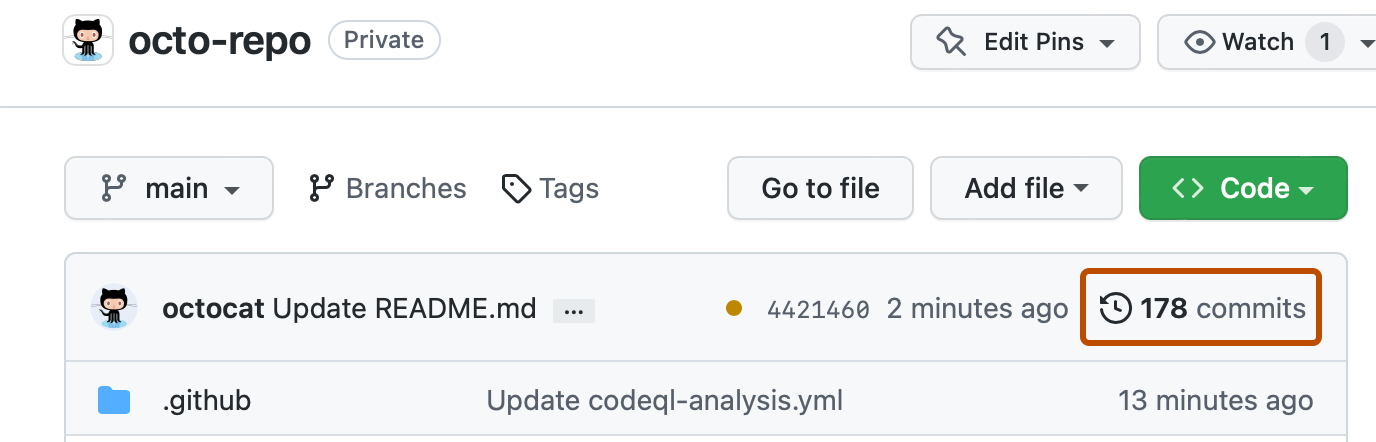
On the main page of the repository, above the file list, click commits.
-
To navigate to a specific commit, click the commit message for that commit.

-
Hover over the blue to the right of the username.
-
Use the message to decide what to update:
- Unrecognized author (with email address): Add the shown email address to your GitHub account.
- Unrecognized author (no email address): Set your commit email address in Git, then add that address to your GitHub account.
- Invalid email: Set a valid commit email address in Git, then add that address to your GitHub account.


Old commits might not be linked after you update your email settings. See Setting your commit email address.
A commit exists on GitHub but not in your local clone
If git show COMMIT-SHA returns an error locally but the commit is visible on GitHub, your local clone may be out of date or the commit may no longer be referenced by a branch.
The local repository is out of date
Fetch information from the remote repository.
git fetch REMOTE
Use git fetch upstream for a fork's upstream repository, or git fetch origin for the repository you cloned.
The branch that contained the commit was deleted
If a force push overwrote branch history, you may be able to recover it on GitHub, including in a private repository. You need write access to create a recovery branch. This workflow only works if the previous commit still opens on GitHub.
- Open the repository's activity view. See Using the activity view to see changes to a repository.
- Use the branch dropdown to select the affected branch. In the All activity dropdown, select Force pushes.
- Find the force-push event that overwrote the history. If available, you can select Compare changes from the event's menu to view the comparison.
- If you choose to view the comparison, copy the base commit SHA, the first SHA in the comparison URL. Otherwise, use the event's before commit SHA, which was the branch tip before the force push, not its after SHA.
- Open
https://github.com/OWNER/REPO/tree/BEFORE_SHA, replacingOWNERandREPOwith the repository owner and name, andBEFORE_SHAwith the previous commit SHA. - If the commit opens, select the branch dropdown above the file list. Type a new recovery-branch name, such as
recover-history, then select Create branch. - On the new branch, check the files and commit history to verify that the expected history is present.
If you cannot find or open the SHA, or if the branch was deleted, ask a collaborator who still has the commit in a local clone to push it to a new branch.
git branch recover-B B
git push upstream B:recover-B
Then, fetch the recovered branch.
git fetch upstream recover-B
Avoid force pushes
Avoid force pushing unless necessary, especially when more than one person can push to the repository. Force pushing rewrites repository history and can disrupt collaborators or corrupt pull requests.
A commit is blocked by push protection
Push protection blocks commits, uploads, or API requests that contain supported secrets.
Understanding why push protection has blocked your commit
If push protection blocks your work, GitHub detected a supported secret in your commit or request. Remove the secret before trying again.
Resolving a push protection block
- Review the push protection message to identify the secret and where it appears.
- Remove the secret from the commit, file upload, or API request.
- Try the push, commit, upload, or request again.
- If you believe the secret is safe to push, follow the bypass steps for your workflow: